Liqube updates Resonic Audio
Player to Alpha 620 25th
January 2013
Liqube has updated Resonic,
an audio player and browser for Windows, to Alpha 620.
New features:
Analyzer graphics now fully anti-aliased.
Analyzer behavior and vertical scaling much
more accurate.
Experimental native support for the
ShuttleXpress by Contour Design. For more
information see
www.resonic.at/devices/shuttlexpress
Natural sorting for files and folders:
numbers in file and directory names are taken
into account, and are now sorted exactly the
same way like in Windows Explorer (suggested:
Billain).
New peak level meter (PPM) with completely
reworked code. Peak range is -90 dB to 0 dB,
fall-off response is dynamically adjusted.
Multiple files can now be selected without
auto-starting playback: To do so simply click
files while holding down CTRL or SHIFT, like you
would normally do in Windows Explorer.
Splash screen can now be configured via Menu
| Interface.
By default now only one Resonic
instance is allowed at once. Running instances
are reused (suggested: Billain), all
command line parameters and options are passed
over. You can now also (safely) run multiple
instances of Resonic, see Menu |
Application.
Selection rectangles can now be drawn, and
while you are holding down CTRL the selected
files will never auto-play.
New shortcut: ALT+L toggles level meter.
New shortcut: F5 refreshes current file
list.
New shortcut: CTRL+F5 refreshes both browser
and file list.
New shortcut: CTRL+ENTER selects current
file in Windows Explorer.
New shortcut: SHIFT+CTRL+ENTER selects
current file's folder in Windows Explorer.
New shortcut: CTRL+A selects all files in
current file list.
New shortcut: CTRL+C copies selected files /
the highlighted file to clipboard.
New shortcut: CTRL+X cuts selected files /
the highlighted file to clipboard.
New shortcut: PAUSE (BREAK) key toggles
mute.
New shortcut: F4 toggles left panel,
including browser.
Added file list context menu (right click).
Drag and drop folders or files from Windows
Explorer / other applications onto the folder
browser to change folders in Resonic.
Drag and drop folders or files from Windows
Explorer / other applications onto the file list
to change folders in Resonic and start
playing.
Improvements:
Analyzer resolution doubled for better
overall accuracy and smoother animations.
Improved frequency display in analyzer (thx
Martin).
Linear analyzer now visualizes frequencies
up to 16 kHz.
Logarithmic analyzer now visualizes the full
spectrum.
Improved low volume resolution in waveform,
ie. you can now better distinguish between low
volume peaks and digital silence in audio
material.
Optimized file listing for folders with
several thousand files in them.
Playback starts faster now for most audio
files.
Bigger visualization button (right below the
level meter).
For your convenience SPACE now also restarts
the current file, if stopped.
CTRL+DEL now also recycles multiple selected
files in one go, or the highlighted file.
New shortcuts are available when the folder
browser is focused: The UP and DOWN keys select
a folder, the RIGHT and LEFT keys expand or
collapse a folder, and the ENTER key plays the
first file in the folder.
Interface color theme and graphics updates.
Corrections:
Fixed level meter never reaching full 0 dB (reported:
B. Hudák).
Fixed level meter not going all the way up
to 0 dB.
Fixed files not always being sorted
correctly when changing folders.
Fixed some non-critical graphics memory
leaks.
Fixed waveform being cut off at very low
peak values, which was mostly visible with
samples and speech recordings.
Numerous bug fixes in database code, adding
extra stability.
Fixed startup error (Abnormal program
termination) when trying to run three or more
instances of Resonic
Advanced options for prescans and peak cache
are now saved and restored properly.
Remarks:
To select multiple, individual files hold
CTRL and click.
To select a range of files hold SHIFT and
click.
A note on Menu | Advanced | Use accurate
pre-scans: Accurate pre-scans scan audio files
more accurately, which impacts how fast files
start playing. In almost all cases there is a
noticeable delay with this option enabled.
Depending on the length of the audio file in
question this can take up quite a bit, e.g. with
single-file mixes that last an hour or more. If
you like it the proper Resonic way,
meaning your audio files start playing almost
instantly, make sure that this option is
disabled, which is the default. However, if
you're having problems with certain compressed
variable-bitrate (VBR) files showing waveform
peaks that either seem misplaced, or completely
off, enabling accurate pre-scans will most
likely fix the problem.
Known issues:
Known issue: File list does not auto-update
after cutting files. You have to manually
refresh it by pressing F5.
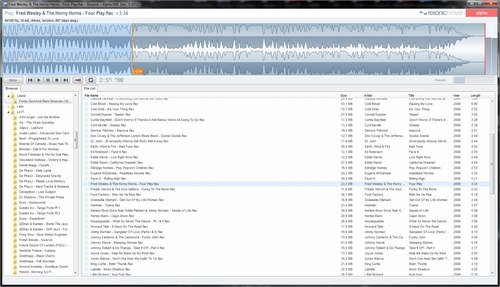
Resonic is an ultra-fast audio and music player
/ directory player / sample browser for the Windows
operating system, built around a big waveform view.
Free for personal use. Company /
commercial use requires license.